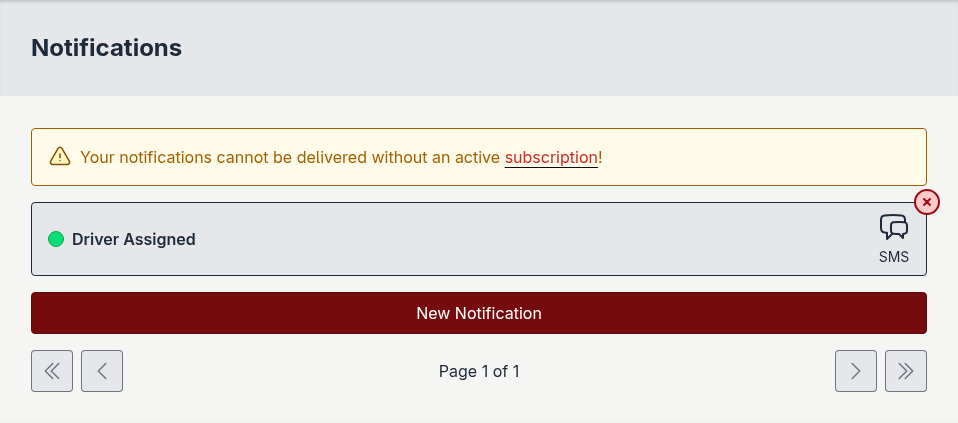
Creating a live notification
Warning
Without an active subscription, notification messages will not be delivered to any destination phone numbers.
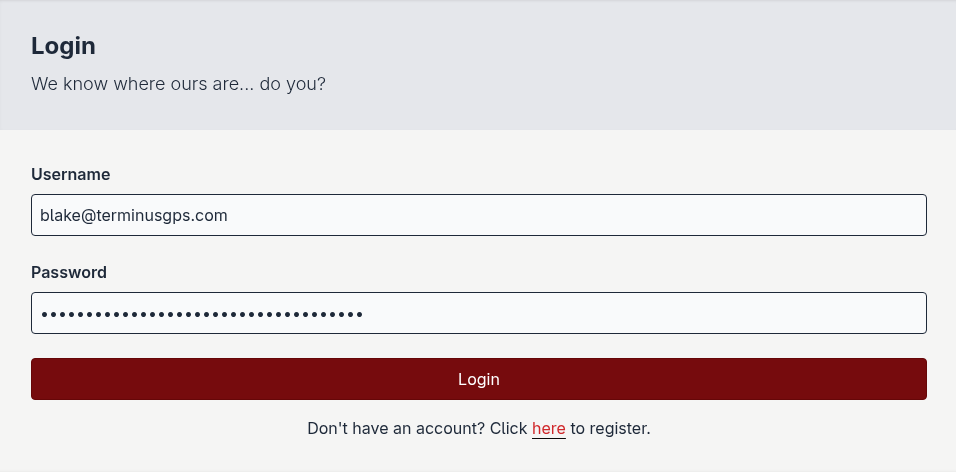
Login to the platform.
Navigate to the notifications page.
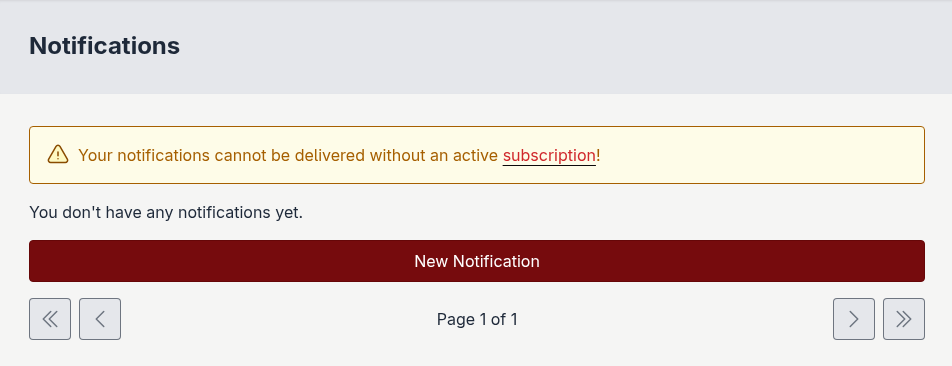
Click the New notification button.
Note
During notification creation, please do not refresh the page or you will lose your progress.
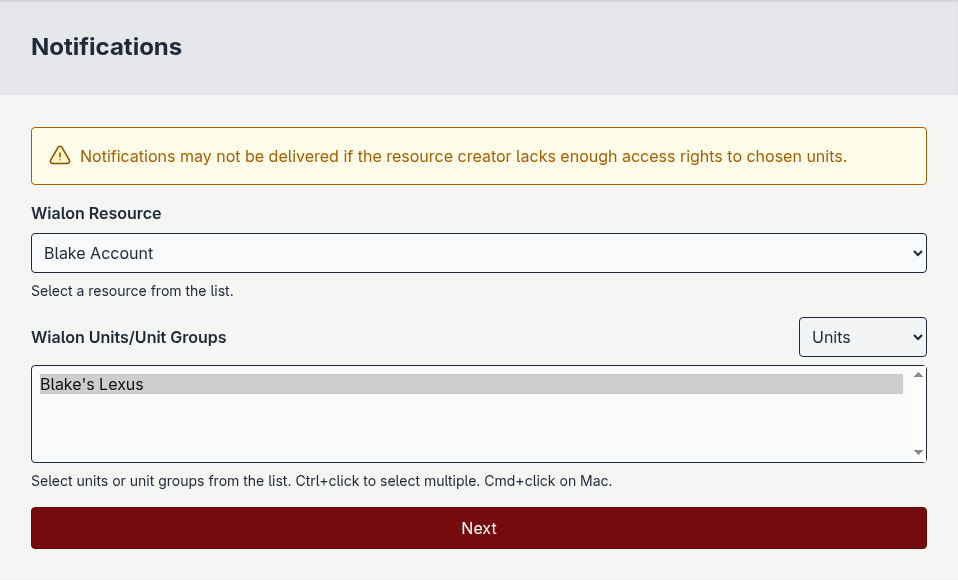
Select a resource from the list.
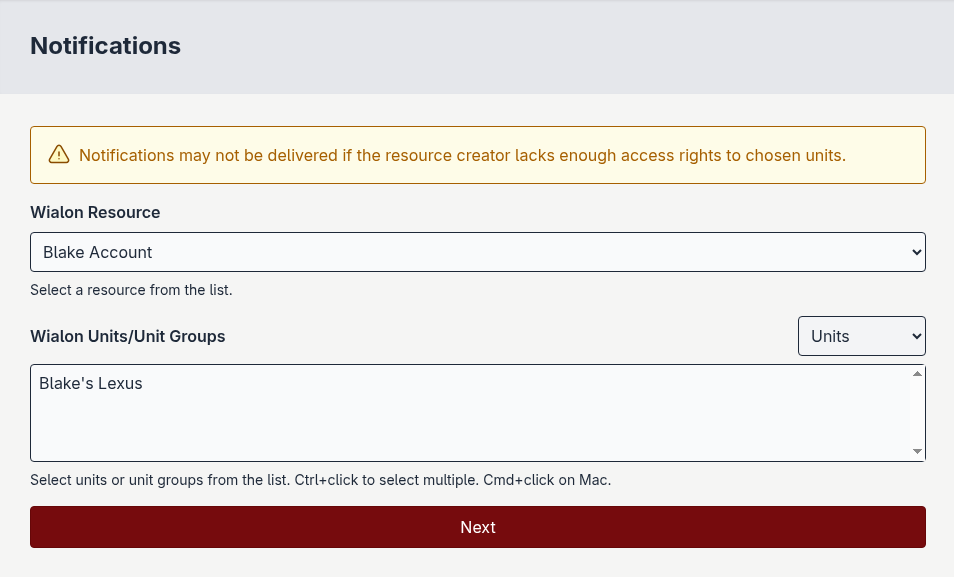
Select units/unit groups from the list.
Select a notification trigger type from the list.
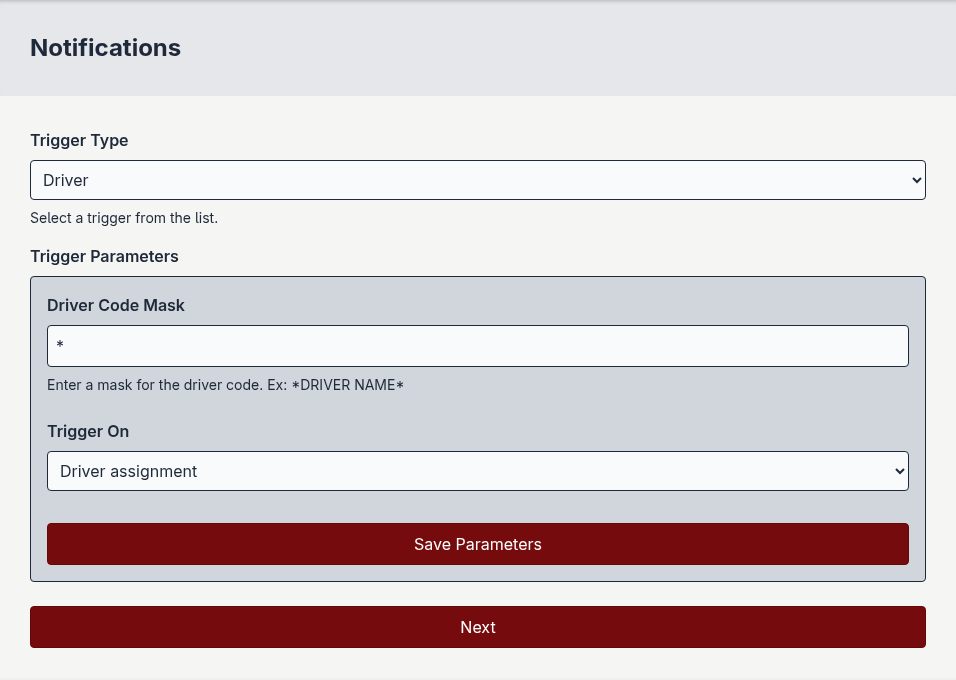
Set notification trigger parameters.
Note
If you click next before clicking Save parameters, you’ll have to re-enter your notification trigger parameters.
Click the Save parameters button.
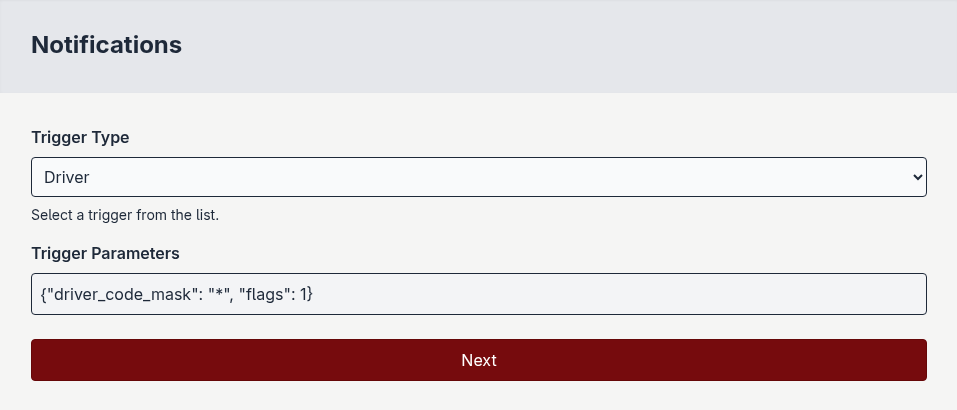
Click the next button.
Choose a notification method.
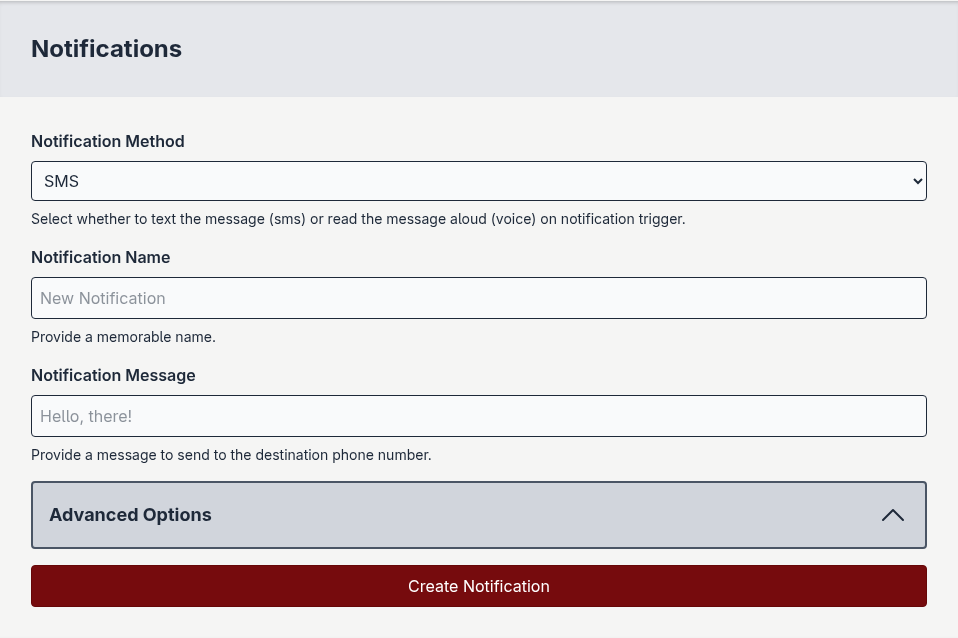
SMS: Delivers the notification message via SMS to destination phone numbers.
Voice: Delivers the notification message via text-to-speech to destination phone numbers.
Provide a notification name.
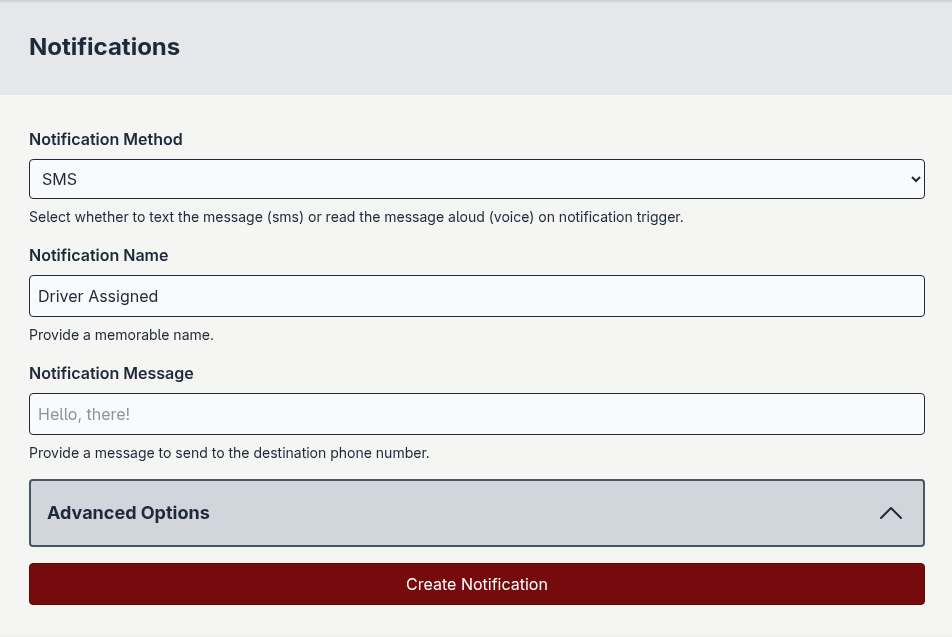
Provide a notification message. This is the “main” message to be delivered to destination phone numbers.
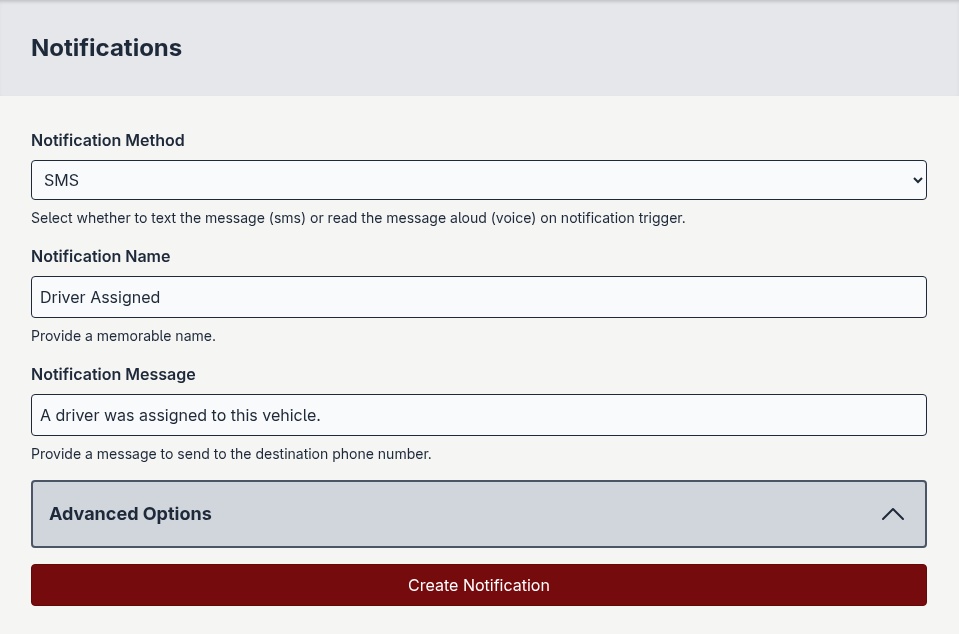
Destination phone numbers will recieve a constructed message using what you provide here during creation.
The final message is structured as follows: [DATETIME] [LOCATION] [UNIT NAME] MESSAGE
Example messages delivered to destination phone numbers:
[2025-12-31 13:04:29] [123 Main St] [Blake's Lexus] Your vehicle had its ignition switched on.[2025-12-31 13:04:29] [UN38203982] A driver was assigned to this vehicle.[2025-12-31 13:04:29] [123 Main St] [Pete Truck] Your vehicle's speed exceeded 40mph.[2025-12-31 13:04:29] [Speed Demon] Your device was unhealthy.
Note
There should always be a date and time added to the message, but unit name and location are optional. Depending on your notification configuration, Wialon may or may not provide these when your notification is triggered.
Click the Create Notification button. You’ll see a message confirming notification creation before you’re redirected back to your notification list.